Wednesday, 12 November 2014

Creating deeper meaning with BookTrack

I would highly recommend www.booktrackclassroom.com.

This is a free website which allows reading/creation of books to selected music/sounds.

I have started using this with one class and now it's spread like wildfire throughout the school.

I was working with one year 3/4 class that had already created their own class story together and so we copied and pasted it into Booktrack and just had to add sounds.  We are yet to finish adding all the sound effects to this story, but I thought I would give you a snippet.

What I really like about this is it gets children thinking about the composition of the story.  In this attached brief example of a start of a story, you will see the children had to really think about what the personality of the characters they had created were like and choose which music best fit their characters.  It really brought the characters alive for them.  It will be interesting to see how through music the characters develop as the story goes on.


I have now created a competition amongst classes, with a specific voting criteria.  After reading a book you can vote on how many stars.  The book with the highest score will go on our school website.  Looking forward to seeing the result.

Friday, 7 November 2014

Worksheets vs Student Led in Maths today

Today I had the privilege of having to step into a classroom (year 3) to cover a for a teacher who had had to leave for an emergency.   The teacher had left some maths worksheets behind.

I must admit the thought of giving out these maths worksheets to the children made me cringe.  Boring was the only word that came to mind!

It was a Friday and I knew this class were a challenge. So I decided to take a risk and do something more student driven .

The results were incredible, so I wanted to share:

First of all I talked about how we were going to do student led maths today which meant they were going to drive the maths.  This captured their curiousity immediately.

I asked the class to come up with some maths problems.  After talking with their neighbour quickly, they started sharing some of the problems they came up with (see photo below).


Displaying photo.JPG

Then I explained that were were going to use a dice today and we needed to come up with six different ways they liked to solve problems.

They initially came up with these:

1.  Draw a picture
2.  Talk the solution through
3. Write the solving process in a book
4. Using maths equipment (no calcs)

I asked them to think about how could we use the Chromebooks and iPads we had in the classroom and the following were added to the list:
5. Video solving the problem iPad/create a Google Presentation on Chromebooks
6. Multi choice select from 1-5

I asked them how long they thought it would take to solve each problem, and we settled on a 5 minute time frame for each problem.

We talked about how many we should have in a group to work these problems out and the students felt it was better to have two in a group, otherwise anymore then there's always one person who doesn't do anything.

So they grouped themselves into pairs and selected one of the problems from the board they wanted to start with (they could complete them in the order they chose).  Armed with a dice they rolled the dice and then had to solve this problem using the method corresponding to the dice number.  So a 1 would be "draw a picture" etc.

I encouraged the children to capture their learning by photos or video if they were using materials or drawing a picture.

So after an hour of maths, what did I learn about this class:

I learnt
- this class were clearly used to working with Word problems because they could articulate word problems so quickly
- from the word problems they came up with I learnt that two thirds of the class loved collecting rocks
- they particularly enjoyed videoing and seeing it played back
- every single student was completely engaged
- the more difficult students were completely on task and well behaved
- they preferred working in pairs to larger groups
- they loved sharing the way they solved their problems with the class
- they loved having choice
- they had so much fun
- students were empowered to learn

Now I wonder if I would have learnt so much about the class if I'd given them a worksheet and I wonder how engaged these students would have been?

Sunday, 2 November 2014

Tinkering at the Mind Lab with a bit of MLE and Reverse thinking thrown in

Today at the Mind Lab we were introduced to tinkering.

First of all we created Wobble Bots and then Scribble Bots.  Watch the video to find out how!

Wouldn't this make fantastic procedural writing!

Children should engage in tinkering and making because they are powerful ways to learn.
(www.Inventtolearn.com) A must read here is the book Invent to Learn: Making, Tinkering and Engineering in the Clasroom by Sylvia Libow Martinez and Gary S. Stager

Essential learning goes beyond books and theoretical "what ifs." When students design, build, iterate, and revise their creations, they learn important life lessons about empathy, creativity, grit, failure, and success.  

Piaget’s constructivist theory talks about knowledge being a consequence of experience. As teachers we all know that children learn best by doing. Seymour Papert added to Piagets constructivist theory and took it a step further towards action. He defined this theory as constructionism and is considered the founder of the maker movement. Papert extended Piagets constructivist theory adding manipulative materials to the idea that learning is most effective when part of an activity the learner experiences is constructing a meaningful product. This theory is really at the heart of the maker space movement and in understanding the potential for learning through a maker space. Although the learning happens inside the learner's head, it happens most reliably when the learner is engaged in a personally meaningful activity that makes the learning real and shareable. Construction that may be shared could be as simple as a poem or a game created. John Dewey was an advocate for hands on learning, however it is important to note though that constructionism is more than just about hand’s on learning. The most meaningful part is about the questions asked as part of the process. The resultant product might stem from such a question like ‘how can we make this product go faster?” Constructionism empowers learners to connect with everything they know, feel, and wonder, stretching themselves into learning new things. http://www.edutopia.org/blog/maker-movement-shoulders-of-giants-sylvia-martinez?utm_source=twitter&utm_medium=post&utm_campaign=blog-maker-movement-shoulders-giants

Reverse Thinking

After our tinkering we talked about Modern Learning Environments and brainstormed traditional environments compared to MLE's.  Chris Clay then introduced the concept of Reverse thinking and we had to choose one component from the MLE brainstorm and then think about it in reverse.  Reverse thinking helped us to clarify exactly what a MLE is.  I tried this in the classroom when I took a group of children who were creating an e-book.  We tried reverse thinking to brainstorm what an e-book was NOT and this really did help clarify what an e-book was.  Try it!

Wednesday, 29 October 2014

3D Modelling using Tinkercad and Sculptris

Today at the Mind Lab we looked at TinkerCad.com.

It is free to sign up and it allows the creation of 3D models.  I can see how this would be great for teaching about properties of shape, angles, actual 3D models, spatial awareness etc.  You can export the file as an .obj or a .stl and print these out on a 3D printer.  When you add the shape to the 'plane' you can view this object in all directions, resize etc.  There are rulers to help with measurements.  Great for geometry, angles, measurement etc.  

Here is an example of a peg and the beginning of a name plate.  To get the 'holes' in the shape, you create the shape you want for the hole, put it over the first shape and then click on 'hide' then group both shapes together and the 'hidden' shape makes the hole.


We also looked at software called Sculptris by Pixilogic.  This is free software and is 3D modelling with 'clay' in effect.

It is really easy to use and I could see how this could be used to create characters in narratives, or even worlds, planets, mountains etc.

Here are a few pictures from my result of playing, the original shape being a sphere.


Sunday, 24 August 2014

Scratch it up a level or two (Mind Lab: Session 4)

I am currently completing the Post Graduate Certificate in Applied Practice (Collaborative Digital Learning) through the Mind Lab and Unitec. For the first sixteen weeks I spend four hours at the Mind Lab with about 30 other amazing educators from early childhood through to tertiary education (there's approx 100 of us altogether).

This blog post is a snippet about our fourth session at The Mind Lab, where we looked at coding using Scratch.  For anyone unfamilar with the concept of coding, coding is essentially creating a set of instructions that makes something do something.  Scratch makes code easy to use by presenting code in 'jigsaw' like pieces color coded into different areas of actions.

Scratch (http://scratch.mit.edu/) is a free website for children to learn how to code. There is also an iPad app available and now a Scratch Junior as well.

You can create new Scratch projects without signing up, however signing up allows you to save and share your code projects.

In this session we were encouraged to 'discover' how to use Scratch through experimentation.  We ended up choosing what are called 'Sprites' (characters) and playing with the different types of code which were colour coded by motion, looks, sound etc.

For example in the photo below we had selected the 'cat sprite' and then in the 'jigsaw' type code, you can see we chose an event (orange) that said when a key is pressed, then in purple is the sound code which will make a certain sound play, then the blue code is to do with a motion that the 'sprite' will do.

We ended up making the Octopus change colours, the cat dance around the screen and the lady circle around and make a clone of herself.

We added further code which meant that when a 1, 2, 3 or 4  was pressed, the type of instrument changed and the costume (which was colours of the sprite).

We had a lot of fun experimenting and could see how easy it would be for children to create code using the 'jigsaw' type pieces.

Scratch can be used to create games and by going online to the Scratch website you can find games that have been created in Scratch and then look at the code so see how it was done, so you can deconstruct the code and learn from it.


Then we were introduced to a 'makeymakey' card which is essentially a computer chip with a bunch of wires to create a circuit.  We had to choose from a range of conductive materials to connect the wires to and we chose playdough (as shown below)


You could plug a wire on the makeymakey board into the slot which was the equivalent of the  'a' of a keyboard and then plug the other end of the wire into the playdough.  We repeated this for each letter of the keyboard located on the makeymakey board.  We had to make sure we had an 'earthing' wire which was plugged into the yellow playdough on the right hand side of the photo.


So in effect, what we were then able to do was tap on the playdough, (whilst touching the earthing playdough) to activate our code in Scratch which made our Sprites do the actions we'd coded them to do and the sounds play too.  Here is a short video clip to show you the end result.


Makeymakey kits can be bought through www.mindkits.co.nz for about $75 plus postage.  This is a local company in West Auckland.

I'm really looking forward to trying this out with children at school!


Monday, 16 September 2013

Google Chromebooks and the WeVideo app


Last year I evaluated Chromebooks and the impact on learning  http://helenselearningjourney.blogspot.co.nz/2012/12/chromebooksgoogleappsoffice-365.html

I have had the privilege of having a Samsung Chromebook on loan for a couple of months now which I've put into classrooms to try out.  We did a collaborative project around persuasive writing using WeVideo which is a Google Drive video editing app that allows you to record voice, upload photos, video, sounds etc. (Create, Connect App, WeVideo, then use by Create, WeVideo).

I tried out the 30 day trial collaborative Education version of WeVideo whereby users can collaborate on the same video at the same time.  What was interesting was that I was on my MacBook Pro and other students were on the Samsung Chromebook.  I had do download updates to Flash etc to get WeVideo to work on my MAC, however the Chromebook had no issues whatsoever.   Very impressed!

Here's a a draft version of the video we created.  Interestingly, you have to pay for the collaborative version of WeVideo ($200/year for 50 users), however you can just use the free version of WeVideo, which is a watered down version.  Not as many transitions and effects.  I am definitely sold on WeVideo as an  effective and simple tool to use across the curriculum.  I love how it ties in so nicely with Google Apps too.


http://youtu.be/39dLAaGlQiM

Sunday, 15 September 2013

I don't have the time to learn or collaborate! Really? How can you afford not to!

I have found that whenever I talk to educators about Twitter, if they haven't used it before, a common response is, "oh I don't have time for that".

Surely at the heart of teaching is learning and building relationships!! Do you really NOT have time to learn new things or collaborate with like minded colleagues?   I would argue how can you afford not to!!

Twitter for me has provided some of the best professional development I've ever had.  I connect and collaborate with educators all over the world and most of the New Zealand educators I connect with I have had the privilege of meeting in person.

Amazing things start to happen when you do start connecting and participating on Twitter.  For example one night I was tweeting with @mrs_hyde who is a DP at an intermediate school in Rotorua.  She encouraged me to attend the Educamp unconference in Rotorua and mentioned @CaroBush was travelling down suggesting a carpool. The next minute @CaroBush (whom I didn't know) was tweeting saying she had space if I wanted to go.  To cut a long story short I ended up travelling down with Caroline and four other educators and we had the most amazing learning conversations in the 3.5 hour drive, and by the time we got to Educamp we'd already done so much learning.

I saw Jarrod from #pegeeks in Australia had created a 14 day twitter day challenge, which gave me the idea to create a 14 day challenge to encourage educators at my school to give Twitter a go.

I created this challenge in www.smore.com which is an online flyer.  So I challenge you to take the 14 day challenge!   You won't regret it.

https://www.smore.com/a6c1-the-14-day-twitter-challenge


Anyone for EduCafe Maths?

I have tried EduCafe style maths with a year 2 and year 5 class successfully.  So what is EduCafe style maths??

Divide children into mixed ability groups around tables.  I usually build a bit of fun into it by talking about how we are going to a cafe to do maths today etc.  

Each group must decide on a 'summariser'.  This is a person who will summarise the group's findings to a new group.  

On each table is an A3 sheet of paper with a problem to solve in the middle. Problems around each table vary in difficulty and type.  

Everyone must write down their own ideas and put their name on it.  To start, everyone has 5-10 minutes to solve the problem in any way they can think of.  They can draw it pictorially, describe a strategy etc.  Each group must discuss the strategy they used to solve the problem and check for understanding. The summariser in particular must be able to talk about the different strategies the group have come up with. You may need to remind children that it's ok to make mistakes.  (Classes that have already developed a culture around risk taking and learning from mistakes don't have any problems with this challenge.  If you have a class that aren't comfortable with making mistakes or don't know each other well enough to feel comfortable to do this, then let the summariser pick one strategy on the paper to summarise back to the new group).

When 5-10 minutes have passed, signal to change tables.  For year 2s I found it better that children all rotated one way, for year 5s I let them choose which table they went to next to shuffle everyone a bit (max 4 children at a table).

The summariser must not move tables, and their job is to summarise the previous group's strategies, to the new group, then that group tries to add any new strategies they can think of. 
And the process continues.

I found it beneficial to pull everyone together at the end and focus in on some of the strategies that were used to solve various problems.


Monday, 2 September 2013

How are you driving your own learning?

There are so many opportunities to drive your own professional development  these days, it can become a little overwhelming. Where do you start?

At a staff meeting I presented staff with some key professional development learning opportunities - best of the best - to encourage everyone to get behind that wheel and start the journey.   There is a little bit of something for everyone.


When presenting I like to use demonstrate the use of different tools, so this time I tried out Haiku Deck which is an app on the iPad which focusses on the visual side of presenting and you are easily able to select from a range of non copyright photos available at your finger tips through the app.  I found it quick and easy to use.  The downside is it doesn't offer voice and you can't hyperlink websites. (as a side note, I recently read a post which talked about importing a Haiku Deck into the Explain Everything app, then you can add voice that way.  When there's a will there's a way I say! http://www.speedofcreativity.org/2013/06/12/create-a-narrated-slideshow-on-an-ipad-with-haiku-deck-and-explain-everything/).

I have provided all links that are included in the presentation below.


Develop a Personal Learning Network
We need to be connected and collaborate as educators so we can not only continue our own learning journey but be role models for our students.  Our students are growing up connected and collaborating, therefore we need to get our hands in there, so we understand the world our students are growing up in!!!

Virtual Learning Network
A network developed through tki.org.nz which teachers are connecting through in their droves.  If you want to find what iPad app to use for reading etc, this is the place to go.  Great place to share your own ideas to.

Facebook
Connect to Teaching Ideas and Free Technology for Teachers which will be a  good start.  

Twitter
I will do a separate post on Twitter as I have developed a 14 day challenge to twitter.  Twitter is the best PD I have ever had and I would really encourage you to get connected. Even if you start by searching on #ICOT2013 or #EdChatNZ, #GAFE.


Blogs
These are six of the top blogs I would recommend to start with.
http://fluency21.com/
Opportunities
These are fabulous opportunities.  I love getting involved and presenting, but the formats also let you go along and observe until you gain confidence to get more involved.
http://emergingleaders.school.nz/


So take your first steps and get 'driving your own learning'. 

Sunday, 30 June 2013

SAMR - Roadmap to ICT Integration


Over the last couple of months, I've been exploring SAMR in more detail and have presented on it twice, which I've included in this blog post.

What is SAMR?
SAMR is a roadmap to ICT integration that has four level; the first two being where technology is used to enhance the learning essentially as a substitute for pen and paper with added functionality like spell checker.  The next two levels take the learning from enhancement to transformation where more advanced tools are used to create new tasks using collaboration and sharing.  My presentations will explain this in more detail.

I've presented at EduIgnite http://emergingleaders.school.nz/ignite-evening/   EduIgnite is an evening where educational leaders get together and share their learning.  The format has to be 20 slides and 15 seconds per slide.


Here is my slide presentation


I've had a few twitter conversations about the SAMR model.  I had one question asked, what is wrong with substitution?  I reflected on this, and our conversation talked about the fact there is nothing 'wrong' with substitution as such and obviously with a roadmap to integration you have to start somewhere.  This person felt there was stigma at his/her school around 'Substitution' and you were looked down upon when using this level of integration.  

The main point I feel, this is a progression so if you only ever do substitution then we need to think about 'are we using technology the best way we can for the potential it offers in respect of  being used to 'transform learning'.

Is it realistic to expect to be at the 'transforming' level all the time?

I think the majority of teachers probably do just use technology at the substitution level and the SAMR model is helpful as a guide to progress us beyond this level of use. 

In reality there will be times when substitution is more appropriate but if we are able to use technology to take us further to create new tasks then we owe it to ourselves to explore this further.

The levels make you more aware of how we use technology as a tool for learning.

I reflected some more and taught the SAMR model with various classes at my school and then ended up revising my presentation at a TeachMeet2 teachmeetnz.wikispaces.com/Prescott_Helen.  This is where each slide can only be 15 seconds long, hence the 'fast' talking.  I've included thinking around the key competencies from the NZ Curriculum and I've given practical examples of use at each level, also pointing out the benefits of each level.

This is my slide presentation;


This is the video.


This is a great video which focusses on the use of Google Apps using the SAMR Model.


Here are some extra resources that I found on the VLN which you might find of use.


http://edofict.wikispaces.com/SAMR+%26+teaching+with+iPads


Good luck with your journey.  Would love to hear from anyone choosing to take this SAMR journey and how it changes your practice.  @helenoftroy01

Sunday, 26 May 2013

What does a 21st Century Classroom look like?

Last week I attended the first Educafe being run in Auckland, New Zealand by Emma Winder.  This is where people get together to discuss educational issues in a particular format whereby everyone sits at  'cafe' style tables and there is a 'summariser' at each table.  You are given fifteen minutes to talk about a particular issue/question, brainstorming on paper and when the music goes, you go off to another table but the designated summariser stays behind, summarising what was discussed to the new people that arrive.  Then the same thing repeats itself.

http://educafeblog.com/

A wide variety of people attended from Board of Trustees, Primary and Secondary educators.

The the poignant question discussed was:


We know there is a need for us to change our teaching for the 21st century, we know why this is, we’re working towards it,
BUT what does 21st century teaching and learning actually look like in practice?
It was great to get the different perspectives, particularly from a secondary level.  I'm going to focus on one idea that really clicked for me.
The importance of the  New Zealand Curriculum Key Competencies was a common thread amongst the discussions and noted as an essential part of the today's classroom, particularly thinking of future jobs (http://keycompetencies.tki.org.nz/What-are-KCs).
The five key competencies are Thinking, Using Language, Symbols and Text, Managing Self, Relating to Others, Participating and Contributing.

Glen Taylor school from West Auckland mentioned how often schools do a blanket coverage of a key competency where one key competency for a week is focussed on, however each child at their school has a key competency as a goal that they need to work on.  Love this personalised learning.  So when a learning area is discussed, the children are reminded of their own key competency goal to focus on within this task.  

I think that a vital part of this will also be getting the children to reflect on the progress in their key competency.  I will certainly be trying this with teachers.


Wednesday, 15 May 2013

Today's children can google their mistakes! How well are we preparing our children for it?


I am in the process of developing a digital citizenship/cyber safety programme for Years 0-6 at school and am initially focussing on our year 5, 6 level.   Digital citizenship is not a ‘one off’ and should be a continual discussion in the classroom, particularly as situations occur.  This is very much the start of my journey with this, and I will share more as I progress further down the track. 

I started by looking at the resource that Claire Amos had instigated for NZ Teachers that NZ teachers had put together in Wikieducator. http://wikieducator.org/Digital_Citizenship

I reviewed a few videos and wanted to try these out.  To start the conversation going, I worked with a year 5 and 6 class for one block talking about digital citizenship and showed 2 videos and they took an online quiz.   I got feedback from the children and it really made them think.  Fantastic, that’s exactly what we need kids to do nowadays.  THINK, particularly BEFORE they ACT. 

I am terrified for children growing up in this day and age.  In my day there was no internet, so any mistakes I made as a child are not searchable, but the reality is their mistakes will be searchable.  With the increase of mobile devices, pictures/videos are taken too easily and with no respect or thought for others putting things online.

It is important to talk about the attributes/qualities of a good digital citizen and how respect is such an important one.  We should ask permission before we post a photo or video that includes other friends out of respect to those friends.

I will now describe the process of what I did in these year 5 and 6 classes as follows:

What is a digital citizen?
We started our conversation by using www.padlet.com and built an online wall (allows collaborative post it notes) and we explored the key attributes of a citizen, (after determining what a citizen was!).   Then we related these key attributes to online (just put online at the end of each attribute i.e be respectful online). I got this idea from Kevin Honeycutt who is an inspirational speaker from the States, very popular in NZ.

Digital Footprint:
Online safety, privacy, sharing and footprint

Next I showed the video "Digital Dossier" which goes through what a person's dossier looks like throughout the entire life starting in the womb!  There are lots of teachable moments throughout this video and it  is an eye opener as to how large their digital dossier is going to be.


Digital Footprint
Honesty, Integrity and Ethical Behaviour
The second video is all about digital footprint. It reinforces that everything you do do online can be seen by everyone and is there permanently and can be copied and passed on to anyone!

It looks at photos and has a silly photo of a child with pencils up his nose, which is a geat opportunity to talk about 'who' puts photos up on line.  I ask the children, "Do you think this child put this online for everyone to see? and this brings about great discussion. Great for talking about respecting privacy and other's privacy too.


After watching both of these videos I then took the children through the online quiz at
This gives great opportunities to discuss passwords and dodgy pop ups and dodgy emails.  The children really enjoyed this.
Note, whilst I did this in one session it could easily be broken up into serveral half hour sessions, although the children coped really well with the one session.  Their next task is now to create an online resource that they can share with parents and friends about what they have learnt to reinforce the learning. 
Note prior to these discussions I had taught children about Creative Commons which is all about copyright and how to license your work to share.  We had Matt from Creative Commons New Zealand Skype in and do a session.  The does this free for NZ schools. (Matt McGregor <Matt.McGregor@royalsociety.org.nz>).  I have blogged about how I reinforced CC in the classroom too at  http://helenselearningjourney.blogspot.co.nz/search/label/Creative%20Commons

By the way, this Ted Talk on 'electronic tattoos' is an eye opener for teachers and talking about facial recognition.


Tuesday, 14 May 2013

Teaching the Five Ws for Orientation

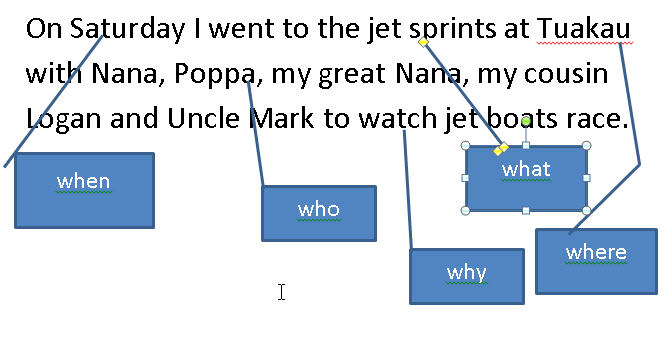
This post explains the use of an MS Word feature to motivate writers to ensure they are using their five Ws in their orientation paragraphs.

I was teaching a year 3 class about including the five W's (who, what, where, when, why)  in their orientation paragraphs of a recount.

The children typed up their orientation paragraphs in MS Word and then we used Ms Word's call out feature found in Shapes (Insert, Shapes, Callouts) to add callouts to show where they had used the five Ws (or not!). I showed them how to hold down the Ctrl key while they dragged on a callout to do a quick copy. What was really interesting was that even the reluctant writers were engaged and motivated and could easily see which of the five Ws they were missing.

I observed one typically reluctant writer and once he had completed the above, he saw very clearly what he had to change and he went ahead and changed it all by himself resulting in the following:


On reflection, I think the advantage of using this method over pen and paper and highlighters is that it is much easier to edit in Word and editing and adding text using paper makes it look really messy.  Children like the ability to edit in Word and have an instantly good looking piece of work to present and of course learning a new tool (callouts and copying using the magic Ctrl and drag) also helps.

Other teachers heard about the success of this method and so the learning was shared. 
Love it when the learning is shared!!

Tuesday, 12 March 2013

Create a Complete Google Apps Resource in Minutes

Our school is going down the path of Google Apps and I have recently set this up together with Teacher Dashboard (manages classes with Google Apps easily).

I was having a look through what we could do with creating websites using the Sites feature of Google Apps and discovered a template which creates a full Google Apps resource and it's customisable.

Brilliant if your school is going Google Apps and using this provides a complete resource with videos, tutorials etc.

Here are the instructions.

Once signed into Google and in the Sites area of Google,

1. Create new Site,

2. Click on "Browse the Gallery for more"

3. Either scroll down or type in the search box "Apps",  to find the template called Apps Learning Centre.

4.  Complete setting up the rest of your Site, giving a name etc and customise your resource as necessary.


Saturday, 1 December 2012

Interactive Photos

If you haven't used www.thinglink.com in class yet, I would highly recommend it.

Children do need an email address to create a login.  This is another great opportunity to reinforce copyright on photos.

Thinglink gives you the ability to add a photo and then tag the photo, with each tag being a clickable link i.e. to youtube clip, information website, soundcloud etc, therefore making the photo interactive.

It's so flexible you can use it in so many different ways.

One class had taken photos of the cakes they had made as a final product from their inquiry on sweet treats.  They had created jingles to go with their cakes which they recorded with easispeaks and then uploaded their recordings into www.soundcloud.com which they then linked to their photos on thinglink.  They also linked in videos on how to do fondant icing, recipes etc too.   

Another class had been busy making advent calendars, so they ended up taking a photo of their finished calendars and then tagging each day.  They recorded reading Christmas stories, making Christmas music using garageband, singing which they uploaded to www.soundcloud.com and then linked to their photos in thinglink.  They also added tags to videos, Christmas info etc.
Have a look at some of them on their blog here http://room6sunnyhillsschool2012.blogspot.co.nz/.

Another class let their children choose what they were passionate about.  Here's a couple of their examples.


The use for thinglink is only limited by the imagination.  You could use this easily across the curriculum.


Chromebooks/GoogleApps/Office 365 reflection


I've been fortunate to have a Chromebook laptop to play with to evaluate for possible purchase for our school.  Chromebooks are wireless laptops that essentially don't have hard drives and are built to work with Google Apps and the Internet, so everything you create (docs, pics etc) is stored in My Drive or elsewhere online. 
Chromebooks use a Chrome OS so if you are already familiar with Chrome and Google Apps, the transition is simple.  It turns on 8 seconds flat (faster than a MAC) and has an excellent battery life. (8 hours in the v1 I have).  Once on, you login into Google and off you go.  Icons down the bottom of the screen give you quick access to Drive, Gmail etc and you have a ‘launch pad’ which gives you your apps you want from the Chrome Store.  Note, only those apps that don’t require downloads can be used.  Of course you have full access to the internet through Chrome, accessing all the wonderful online tools that are available.
I am looking into the value of Chromebooks within our school and whether we buy these or laptops or a mix to best support the learning.  We are also looking at Office 365 and Google Apps and need to decide which cloud solution to use to support collaboration, creation etc for the learner.
A v1 chromebook is US$350 ($430NZ), so a bit cheaper than a laptop.  You can get a ChromeBox which controls the settings for all Chromebooks connected to that box.  So IT support is reduced and controlling the available apps and settings etc is straight forward because it's web based. Chromebooks can't get viruses. The keyboard feels good and mouse very user friendly.
At first when I was looking at the Chromebook I was thinking, ok what software do we have on our network and how can we replicate the same experience on the net and through the apps in the Chromestore?  What does Google Apps presentation do compared to MS PowerPoint etc?Having a software and training background in a prior life before teaching, I am used to comparing and evaluating software, so this was the natural way for me to think. I was also thinking about Office 365 and what that offers in comparison to Google Apps.  Our technicians recommended a trial of both, however I struggled to see the benefit in that because they will both come out well I'm sure with advantages/disadvantages in both.
I gave the Chromebook to a year 2 (6/7 year olds) class today and said to the teacher let the kids have a go and see what they create.  I went back half an hour later and the kids were doing amazing things. These children had never used Google Apps before. They had gone onto Google Drive, created a drawing and two children had decided to research the Wonders of the World and had put together pictures with labels within 20 minutes.  They loved the ease of use of being able to create new things.  They felt there were far less steps involved compared to non Chromebook laptops and working within tabbed windows made tasks more manageable in a faster timeframe. Two other children decided to research insects and had been able to put together various pictures found on the Internet to present them within 15 minutes once again using Google Drawing accessed through Drive.

The seamless creation of new products was refreshing and these 7 year olds did this with no teacher input.  It reminded me of the ease of use of an iPad and how quickly children adapt and create products.
Some people say the Chromebooks are limiting because they can't have downloaded software and you can't save anything on the hard drive. After much reflection and working with the Chromebook myself and reflecting on children's experiences, I came to the following realisation.
Why am I comparing what software we have at school and trying to find equivalent online tools? We should be looking at new ways of creating to meet learners needs rather than trying to do what we've done before.  My generation have been almost indoctrinated with MS Office and  MS have held the market for a very long time. Over the past couple of years the amount of Web 2.0 tools available for creation has increased together with apps for mobile devices.  Why would you think PowerPoint as a default when you should be actually looking at what is the best way to present the learning for that child.  If a child's goal is to work on their oral presentation then surely they should be looking at tools which will support that learning for presenting.  There is a whole range of tools available.  There is a shift in the thinking required, in that instead of having a default position of what we use to create and present, children need to drive the learning and understand what their learning needs are and select the appropriate tool to support that. Teachers need to have a shift in thinking and guide the children in their learning journey. We should be reflecting afterwards on the tools we use.  How did that meet our learning goals?   Does this mean teachers need to be experts in technology? I don't think so.  We need to all be a part of the learning process and willingly and give the reins to the children. We need to develop a continual evolving  digital toolkit for both the teacher and the child to use, but together and as a part of the learning process. The biggest challenge I feel is how to get teachers to create a shift in their thinking.  I read a research report on the Manaiakalani Trust where it said “the use of Google Sites and the Teacher Dashboard were the biggest changes in pedagogy across the cluster”.  With evidence of “co-construction of planning with students, less instructional and behaviour management talk from teachers more learning talk by teachers and students, an increase in independence and self management of learning by students”. (http://www.manaiakalani.org/research-1   seeManaiakalani Evaluation Report 2011: The Netbook Pilot Year   2011 Final Report (see pdf at end).  

Whilst, technology is just the tool, if that tool can support meeting learners needs in a seamless way then it's a pretty important tool!
Some people say Chromebooks are limiting, however I feel enlightened and can now see how they are actually at the forefront in the shift of thinking and really support learning in a more in depth way than imagined and we need to tap into that.
At the end of the day our school needs to choose a cloud based solution for storing documents/work and either Office 365 or Google Apps will suffice.  I don't think it's necessarily about comparing either product.  Yes a choice has to be made, but maybe it's more about what fits best with the learning. Perhaps Google Apps suits a primary school more because of the additional products such as Teacher Dashboard which lets the teacher manage the classes documents.  From the Manaiakalani Trust research Teacher Dashboard was certainly a huge factor in managing student work more effectively.

What we really need to be doing is developing a toolkit for teachers and children as learners so that children can make informed choices to support their learning.  To me if a Chromebook supports this transition and shift in thinking and makes it easier for the teacher and the learner,then isn't the choice between a Chromebook or non Chromebook laptop obvious.  People say you still need to have a few laptops to do the grunt work of creating videos etc, however I think that it's probably only a matter of time before such functionality is available on the web. I feel lucky in that our school is getting ultra fast broadband over the holidays and we are planning to migrate our servers to the cloud.  We are also looking at trialling two classes bringing their own devices in 2013 as part of a focus on blended learning.  Together with the fact that I am full time supporting teachers and children in e-learning this which I feel makes a crucial difference.

Chromebooks are cheaper than a laptop and pave the way to a whole new way of thinking.  For me Chromebooks fit where we are at as a school in that we are looking for cloud solutions to support the learning and it may be that some schools aren't ready for this move yet.
So my final word on Chromebooks, they open up unlimited opportunities for children and their learning.  Yes they are a different way of thinking and learning but maybe this is a good thing as it will support the change in thinking required to meet learners needs in this day and age. I like how Chromebooks wouldn't necessarily hook to our school printers so it forces people to think in a print less world (note this is just the way our school printers work). It would still be possible to print on a networked machine by logging in on a networked non Chromebook machine, but children and teachers would have to think twice about what they really want to print.  Chromebooks would also support online ways of working together giving children an authentic audience instead of their books or print outs which limited people see.  Some web 2 tools are more orientated towards Google in that you can use Gmail to create class accounts such as www.livebinders.com.  I'm sure competitors will rise, however one needs to make a choice with what is available at the time and I feel that with a Chromebook and Teacher Dashboard with Google Apps  has the leading edge in supporting a shift in thinking which is required in this day and age!